

OneDrive Backup Instructions:
- Login to https://uredlands-my.sharepoint.com/my using your University of Redlands login credentials.
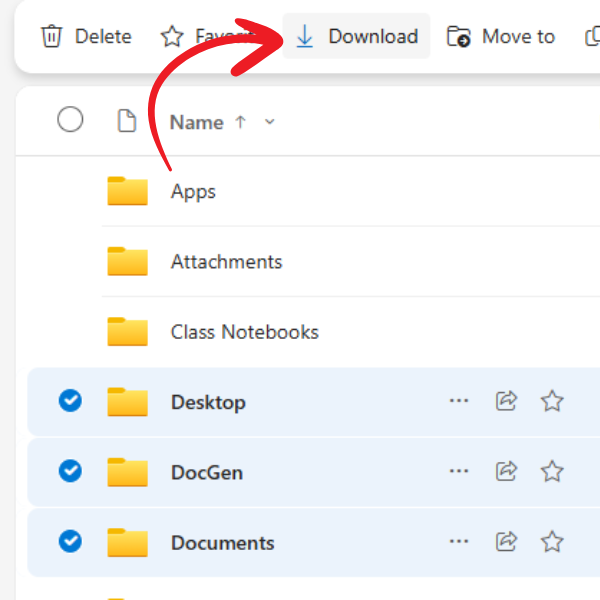
- Select the files/folders that you wish to save by clicking on the radio buttons next to the folders that you wish to save.
- Click on ‘Downloads’ to download the files/folders to your computer. This will compress all your files into a single zip file to your Downloads folder on your computer.
How to Open the files/folders from your OneDrive backup zip file
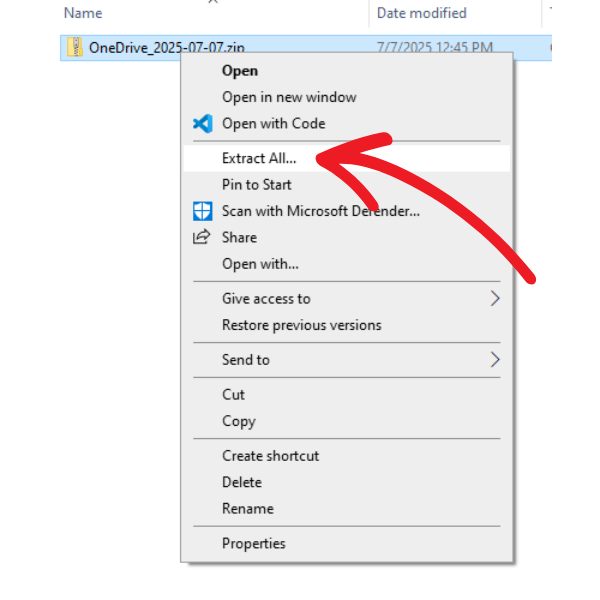
- Go to the backup zip file, right-click and select 'Extract all'.
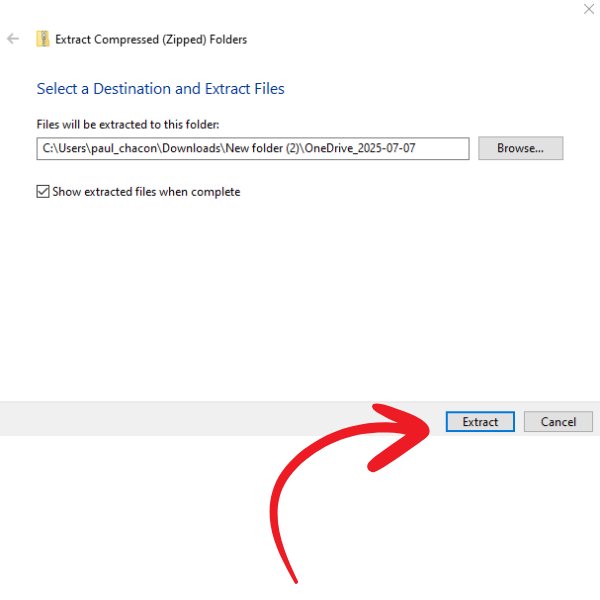
- Then browse to where you would like to save the files in your computer and select 'Extract'.